
Once your activation email from Quokka Net arrives, your Opticomm service is ready to use. This guide shows you how to find your Opticomm connection box, which port your router plugs into, how to set up the router, and what the box’s lights mean.
Quick start
- Find your Opticomm box (ONT). It’s usually mounted on a wall inside your home, often in a cupboard or near the TV.
- Connect an Ethernet cable from the box’s GE or Ethernet port to the WAN port on your router. If your box has four Ethernet ports, use the one named in your activation email.
- Set your router’s internet connection type to Dynamic IP (also called DHCP, IPoE or Automatic IP). There’s no username or password.
- Turn on the router and wait a few minutes for it to connect.
If you bought your router from us, just plug it in: on Opticomm it connects by itself.
Find your Opticomm box (ONT)
The optical network terminal (ONT) connects your home to the Opticomm fibre network. Opticomm has installed several models over the years, so yours may look a little different. Here are the most common.
Adtran 611D and 611B
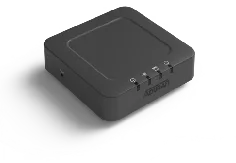
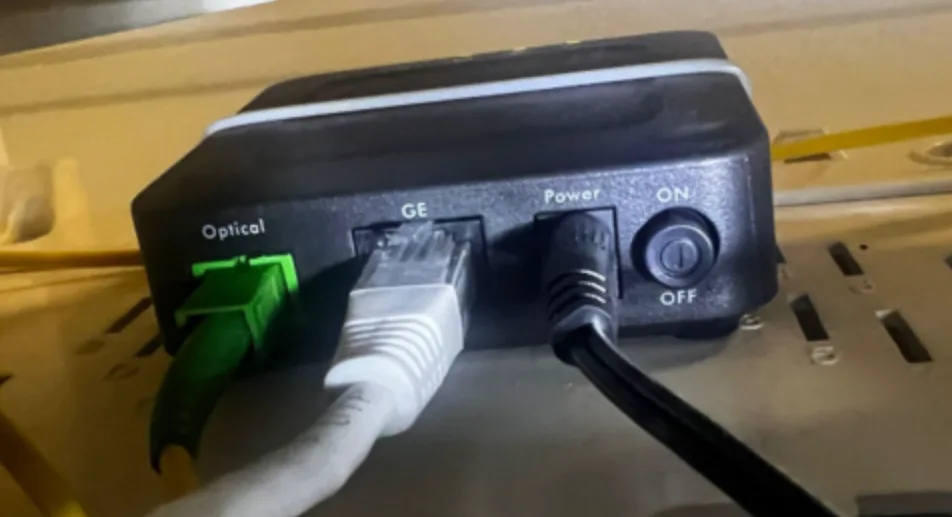
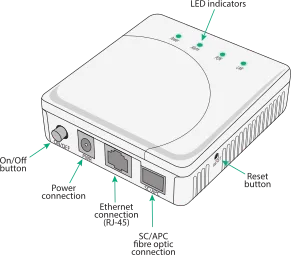
- Optical: the fibre cable from the street. It’s often yellow with a green plug. Don’t unplug it.
- GE: the Ethernet port. Your router’s WAN port connects here.
- Power: the power cable.
Nokia G-240G-E
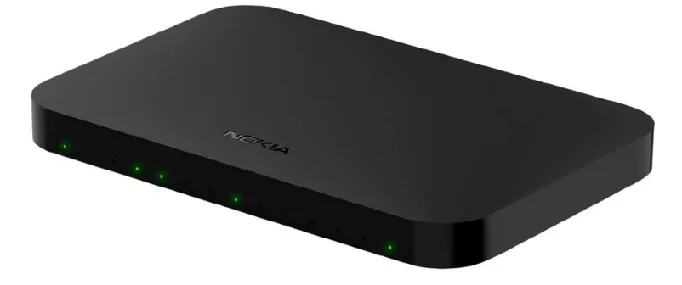
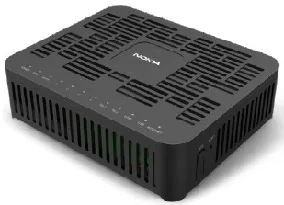
- Optical: the fibre cable from the street. It’s often yellow with a green plug. Don’t unplug it.
- Ethernet: there are four Ethernet ports. Connect your router to the port named in your activation email. For example, UNI-D1 is port 1.
- Power: the power cable.
Nokia I-241G-B
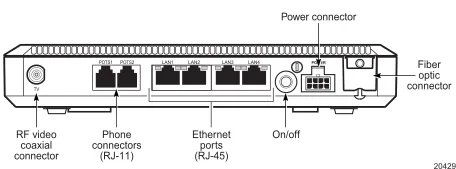
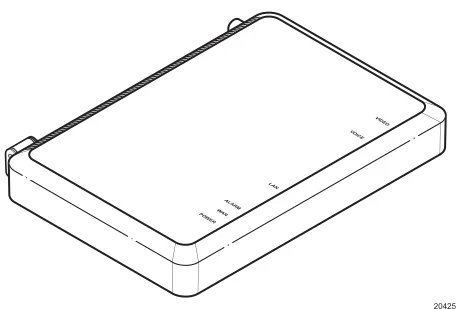
Connect your router to the LAN port named in your activation email. When the service is working, POWER and WAN are solid green and ALARM is off.
| Light | Colour | What it means |
|---|---|---|
| POWER | Off | No power |
| Green | Running on mains power | |
| Green flashing | Starting up | |
| Red | Running on battery backup | |
| WAN | Green | Connected to the fibre network and working |
| Green flashing | Downloading software | |
| Red | Not connected to the fibre network, but has power | |
| Orange | Connected to the fibre network, but not set up yet | |
| Orange flashing | Connecting to the fibre network | |
| ALARM | Off | Working normally |
| Red | Can’t connect to the fibre network | |
| Red flashing | Software problem | |
| LAN 1 to 4 | Off | Nothing connected, or the port isn’t in use |
| Green | Connected at 10/100 Mbps | |
| Green flashing | Connected at 10/100 Mbps, with data moving | |
| Orange | Connected at 1000 Mbps (gigabit) | |
| Orange or red flashing | Connected at 1000 Mbps, with data moving | |
| VOICE | Off | No phone in use |
| Green | A phone is off the hook |
A LAN light that’s green rather than orange means the router is connected at 100 Mbps or less. Check the Ethernet cable, or try a different one.
Other models
Some homes have an Adtran 424 or another model. Whatever box you have, your router connects to its Ethernet port. If you can’t tell which port to use, contact us.
Set up your router
Opticomm connects with Dynamic IP, so most routers connect automatically once they’re plugged in, with no username or password.
- If you bought your router from us, there’s nothing to set up.
- If you’re bringing your own, check it’s on our list of routers that work on Opticomm, and set its connection type to Dynamic IP (DHCP). Our router setup guides show where to find that setting.
Not working?
First, check for an Opticomm outage. If there's one in your area, there's nothing to fix at home.
- Check the fibre cable is plugged firmly into the box. Don’t bend it sharply or pull it out.
- Check the box’s lights against the tables above.
- Turn off your router and the Opticomm box, wait a minute, then turn the box on first and the router a couple of minutes later.
- Check your router is plugged into the right port, and set to Dynamic IP.
Still not working? Report a problem or call us on 1800 663 977, and tell us your box’s model and which lights are on. More about Opticomm plans is on our Opticomm page.