
Most routers work on Opticomm. Your router plugs into the Ethernet port on your Opticomm connection box (ONT) and connects automatically, with no username or password. You can buy one from us that’s ready to plug in, or bring your own if it meets the requirements below.
Buy a router from us
Add a router when you sign up, or buy one from the hardware store in your account. On Opticomm they connect by themselves, with no username or password.
Bring your own router
Your router needs:
- a WAN Ethernet port
- to connect using IPoE through that WAN port. Routers call this Dynamic IP, DHCP or Automatic IP.
It also mustn’t be locked to another provider. Routers supplied by other internet providers often are, so they may not work even if they meet the requirements.
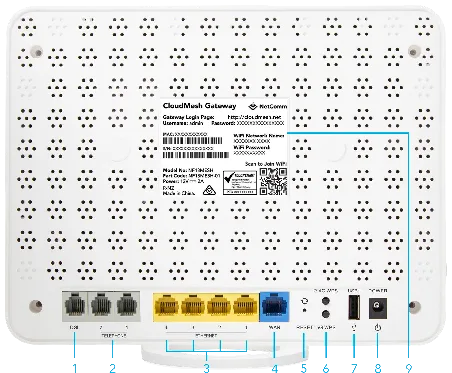
Example: on this NetComm NF18Mesh, the blue port labelled 4 is the WAN Ethernet port.
Which port on the Opticomm box to use, and what its lights mean, is in Getting connected on Opticomm.
Routers we know work
- NetComm NF18Mesh
- NetComm NF10WV (no longer sold)
- ASUS ZenWiFi AX Mini (XD4)
- TP-Link Archer AX10 (AX1500 Wi-Fi 6)
- TP-Link Archer VX1800v (AX1800 Wi-Fi 6 VDSL/ADSL modem router)
- TP-Link Archer AC2100 (VDSL/ADSL modem router)
- TP-Link Archer AC1200 (VDSL/ADSL modem router)
- MikroTik hAP ac2, hAP ax2, hAP ax3 and hAP ax lite LTE6
- MikroTik Chateau LTE 6, LTE 6 ax, LTE 12, LTE 18 ax and 5G ax
- MikroTik Audience
- MikroTik L009, RB1100, RB3011, RB4011 and RB5009 series
Setup guides for other routers, including eero, TP-Link Deco BE5000 and TP-Link Archer AX23, are in Setting up your router. When a guide asks for the connection type, choose Dynamic IP.
Routers that don’t work
- Optus Ultra Wi-Fi Gen 2
- TP-Link Deco M3W
Still not connecting?
Check the lights on your router and Opticomm box, then restart both. If it’s still not working, report a problem or call us on 1800 663 977. More about Opticomm plans is on our Opticomm page.