
To use your Quokka Net nbn service you need a router (also called a modem, modem router or gateway). You can buy one from us, or bring your own if it meets the requirements below for your nbn technology.
Not sure which nbn technology you have? It’s in your activation email, or call us and we’ll check.
Buy a router from us
Add a router when you sign up, or buy one from the hardware store in your account. We don’t always send routers set up for your service, so when it arrives, connect to its Wi-Fi (the name and password are on its label), or open its app, and its setup wizard starts. Choose the connection type in your activation email, and for PPPoE enter the username and password from the email too.
Bring your own router
Your own router will work if it suits your nbn technology and isn’t locked to another provider. Routers supplied by other internet providers are often locked, so they may not work even if they meet the requirements.
Turn VLAN tagging off. Quokka Net’s nbn service doesn’t use a VLAN. Routers set up for another provider are often left on its VLAN (commonly 2 or 100), and won’t connect until you turn it off. Look for VLAN, VLAN ID or 802.1Q in the router’s internet or WAN settings.
PPPoE or Dynamic IP?
Our nbn services connect using either PPPoE, with a username and password, or Dynamic IP (also called DHCP or IPoE), with no username or password. Your activation email says which yours uses, so your router needs to support both.
Your PPPoE username and password
If your service uses PPPoE, they’re in the activation email we send when your service is connected, and usually look like [email protected]. Search your inbox for “Quokka Net”, and check your junk or spam folder. If you still can’t find them, contact us.
Enter them exactly as they appear: the username is the whole thing, including @quokkanet.au. The username and password from your old provider won’t work.
Routers from other providers
Routers supplied by other internet providers usually run software locked to that provider, so they won’t connect to Quokka Net even when the router itself would otherwise suit your nbn technology. Common examples:
- Telstra Smart Modems
- routers supplied by TPG and its brands, including iiNet, Internode and Vodafone
- Optus routers, including the Ultra Wi-Fi Gen 2
A quick test: open the router’s settings page and look at its internet or WAN settings. If you can’t change the connection type, or there’s nowhere to enter a username and password, it’s locked. Not sure? Call us with its make and model and we’ll check.
nbn FTTP, HFC, FTTC and Fixed Wireless
Your router plugs into the nbn connection box with an Ethernet cable. It needs:
- a WAN Ethernet port
- to support PPPoE (a username and password) and Dynamic IP (DHCP) through that WAN port
- for 2 Gbps Hyperfast, a WAN port of 2.5 Gbps or faster. A standard gigabit WAN port tops out at about 940 Mbps.
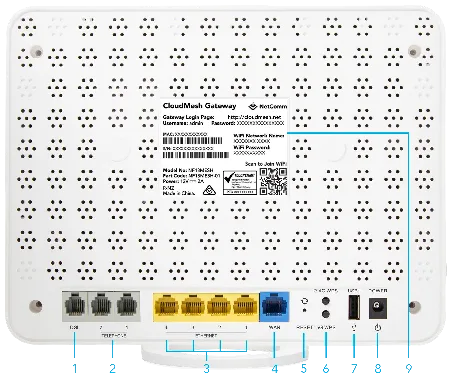
Example: on this NetComm NF18Mesh, the blue port labelled 4 is the WAN Ethernet port.
Routers we know work
- NetComm NF18Mesh
- NetComm NF10WV (no longer sold)
- ASUS ZenWiFi AX Mini (XD4)
- TP-Link Archer AX10 (AX1500 Wi-Fi 6)
- TP-Link Archer VX1800v (AX1800 Wi-Fi 6 VDSL/ADSL modem router)
- TP-Link Archer AC2100 (VDSL/ADSL modem router)
- TP-Link Archer AC1200 (VDSL/ADSL modem router)
- MikroTik hAP ac2, hAP ax2, hAP ax3 and hAP ax lite LTE6
- MikroTik Chateau LTE 6, LTE 6 ax, LTE 12, LTE 18 ax and 5G ax
- MikroTik Audience
- MikroTik L009, RB1100, RB3011, RB4011 and RB5009 series
Setup guides for other routers, including eero, TP-Link Deco BE5000 and TP-Link Archer AX23, are in Setting up your router.
Routers that don’t work
- Optus Ultra Wi-Fi Gen 2
- TP-Link Deco M3W
nbn FTTN and FTTB
Your modem router plugs into the phone wall socket with a phone cable. It needs:
- a DSL port and VDSL2 support
- vectoring support
- Seamless Rate Adaptation (SRA), Save Our Showtime (SOS) and Robust Overhead Channel (ROC) support
- to support PPPoE (a username and password) and Dynamic IP (DHCP) through the DSL port
A router with only a WAN Ethernet port, like most mesh Wi-Fi systems, can’t plug into the phone socket on its own. nbn keeps a list of modems that don’t work on FTTN and FTTB.
Modem routers we know work
- NetComm NF18Mesh
- TP-Link VX220-G2v
- NetComm NF10WV (no longer sold)
Modem routers that don’t work
- Optus Ultra Wi-Fi Gen 2
Still not connecting?
Check the lights on your router and nbn box, then restart both. If it’s still not working, report a problem or call us on 1800 663 977. More about plans and technologies is on our nbn page.