
The NetComm NF18Mesh is a Wi-Fi modem router that works on nbn (including FTTN and FTTB, through its DSL port), Opticomm, SUPA Networks, Neoloop and other fibre networks. This guide covers how to set it up, what its lights and ports are, and how to factory reset it.
Bought your NF18Mesh from Quokka Net? We don’t always send it set up for your service. On Opticomm, SUPA Networks and VostroNet it connects by itself once it’s plugged in. Otherwise, follow this guide to finish setting it up.
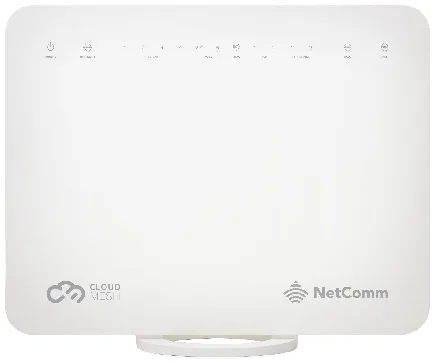
Set up the NF18Mesh
1. Connect the cables
- nbn FTTN or FTTB, or another VDSL service: connect a phone cable (RJ11) from the NF18Mesh’s DSL port to your phone wall socket.
- Every other connection: connect an Ethernet cable from the NF18Mesh’s blue WAN port to the Ethernet port on your connection box (NTD or ONT).
Then connect your computer or phone to the NF18Mesh, with an Ethernet cable or over Wi-Fi. The Wi-Fi name and password are on the label on the back.
2. Log in
Open a web browser and go to http://192.168.20.1 or http://cloudmesh.net. Log in with the username and password on the label on the back of the router.
If it hasn’t been set up yet, the setup wizard appears. Click Yes, start the setup wizard.
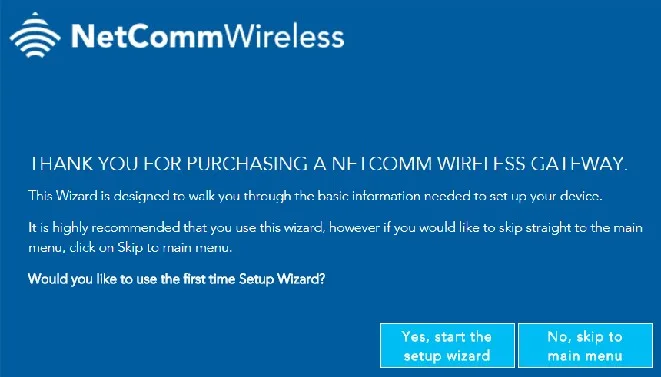
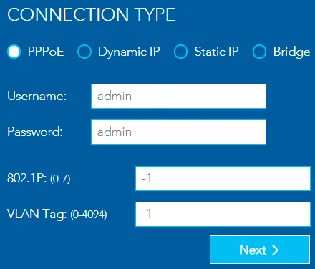
3. Internet settings
Choose your Internet service:
- VDSL for nbn FTTN or FTTB, or another VDSL service
- Ethernet WAN for everything else
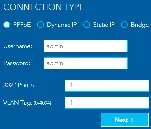
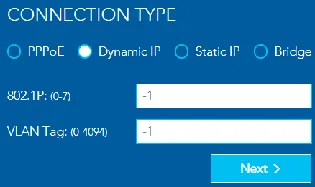
Then choose the connection type:
| Network | Connection type | Username and password |
|---|---|---|
| Opticomm, SUPA Networks and VostroNet | Dynamic IP | Not needed |
| nbn | PPPoE or Dynamic IP, as your activation email says | For PPPoE, from your activation email |
| Neoloop | PPPoE | From your activation email |
| Other networks | As your activation email says | For PPPoE, from your activation email |
Your PPPoE username usually looks like [email protected] (older services may use [email protected]). It’s in the email we sent when your service was connected. If you can’t find it, contact us.
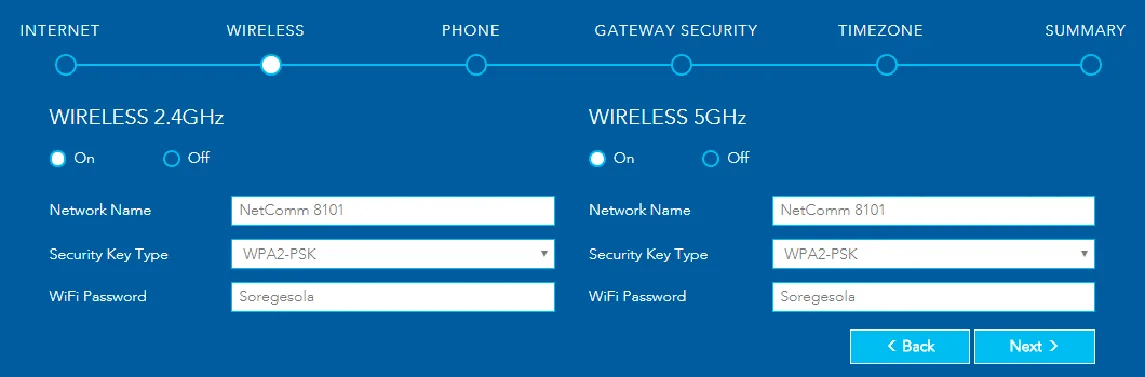
4. Wireless settings
We recommend leaving these as they are. You can change the Wi-Fi name and password if you like.
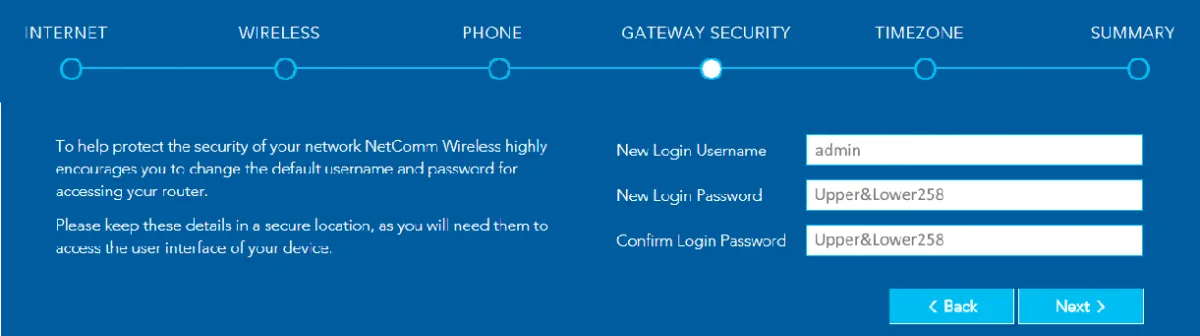
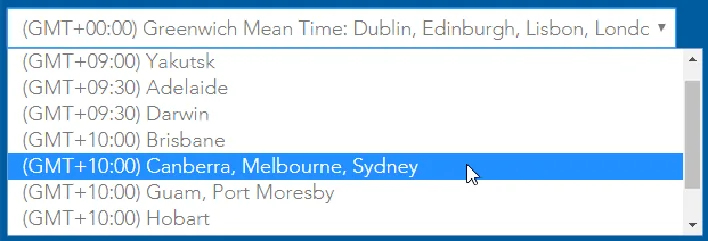
5. Phone, security and time zone
- Phone: click Next to skip this, unless you have a VoIP phone service to set up.
- Gateway security: we recommend leaving the default settings.
- Time zone: choose yours.
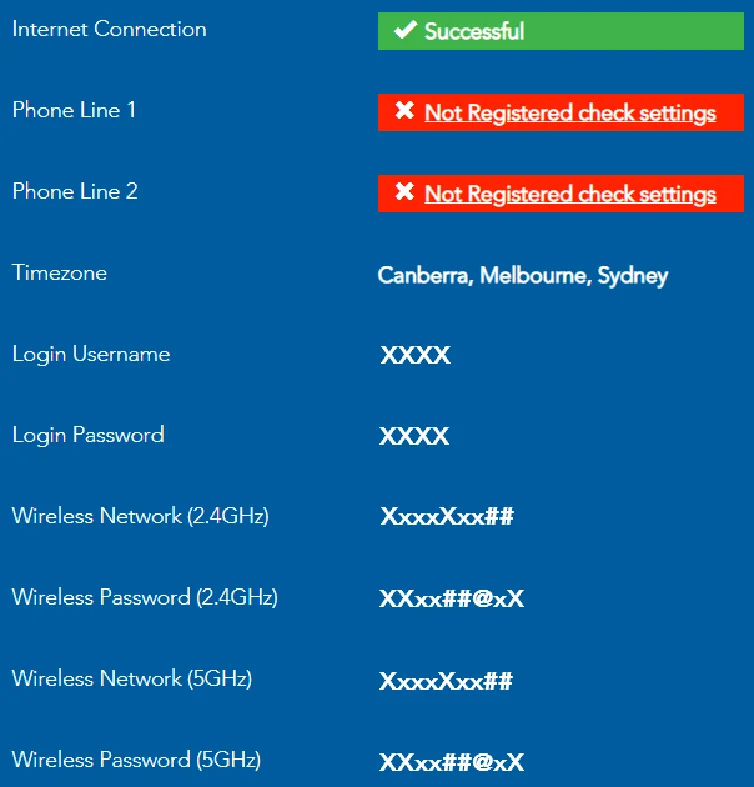
6. Check the summary
Give the router three to four minutes to connect. The summary then shows:
- Internet connection: whether it connected. If it isn’t successful, click the red or yellow message to go back to the internet settings and check them.
- Phone line 1 and 2: your VoIP phone lines, if you set them up.
- Login username and password: for the router’s settings page.
- Wireless network and password: the Wi-Fi names and passwords for 2.4 GHz and 5 GHz.
Lights on the front

| Light | Status | What it means |
|---|---|---|
| Power | Red | Starting up |
| Green | Working normally | |
| Off | No power | |
| Internet | Green | Connected to the internet |
| Green flashing | Connected, with data moving | |
| Off | Not connected to the internet | |
| WAN | Green | Something is plugged into the WAN port |
| Green flashing | Data moving through the WAN port | |
| Off | Nothing plugged into the WAN port | |
| DSL | Green | DSL connected |
| Green flashing | DSL connecting (a signal is detected) | |
| Off | No DSL signal |
If the WAN or DSL light is on but the Internet light is off, the line is connected but the router can’t log in. Check the connection type, username and password.
Ports on the back
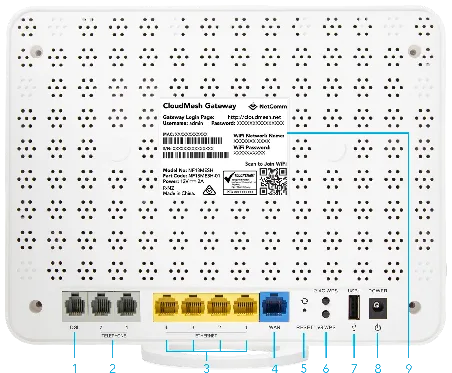
- DSL: for VDSL services, like nbn FTTN and FTTB. Connect a phone cable to your wall socket.
- Telephone 1 and 2: for phone handsets, with a VoIP service.
- Ethernet 1 to 4: gigabit LAN ports for your wired devices.
- WAN: gigabit WAN port. Connect it to your connection box (NTD or ONT).
- Reset: hold for 10 seconds to factory reset.
- 2.4G WPS and 5G WPS buttons.
- USB port.
- Power: connect the power supply here.
- Label: the router’s login details, and its Wi-Fi name and password.
Check your connection
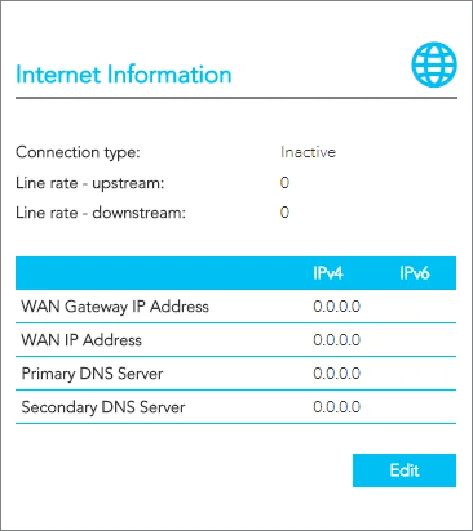
Log in and look at the Internet information on the main screen. It shows:
- Connection type: ETH for Ethernet WAN, PTM for VDSL, or No connection.
- Line rate (upstream and downstream): on VDSL, the speed your line has connected at.
- IP addresses and DNS servers: if these are filled in, the router is online.
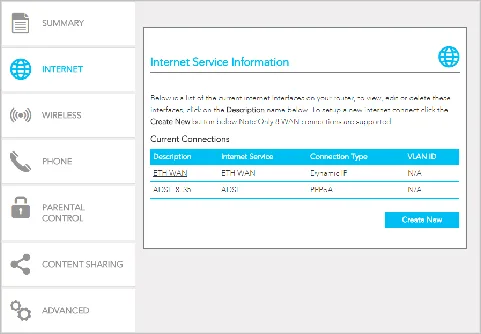
To change the internet settings later, click Internet, then click the connection’s name.
Factory reset
A factory reset erases all your settings, including your internet login and Wi-Fi name and password.
- With the reset button: hold the Reset button on the back for 10 seconds.
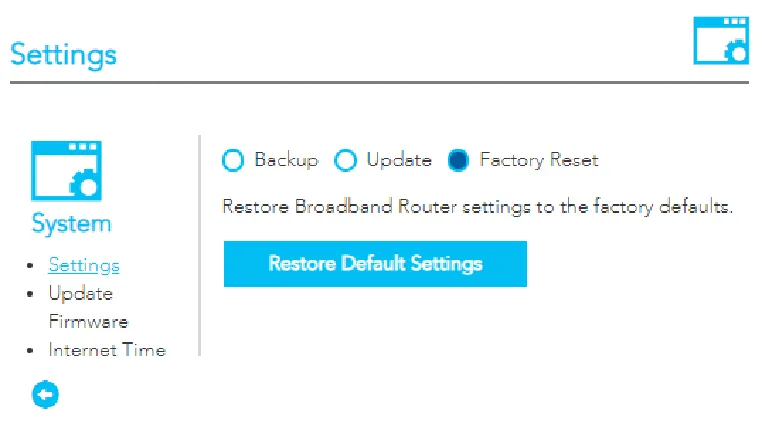
- From the settings page: click Advanced, then Configurations under System. Choose Factory Reset, click Restore Default Settings, then OK.
Wait two minutes for the router to restart. When you next log in with the username and password on its label, the setup wizard starts again.
Still not working?
Report a problem or call us on 1800 663 977. For more detail, see the NetComm NF18Mesh user guide (PDF).