
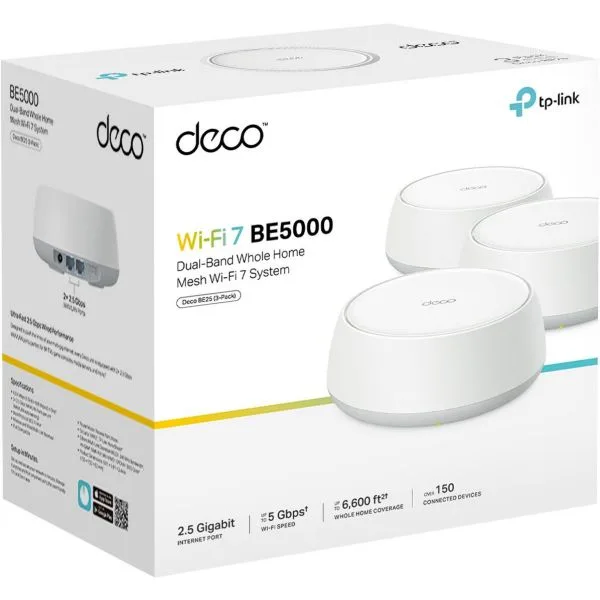
The TP-Link Deco BE5000 is a Wi-Fi 7 mesh system: one Deco connects to your connection box, and any others spread Wi-Fi around your home. You set it up with the TP-Link Deco app on your phone, in about 15 minutes.
Before you start
You’ll need:
- your phone or tablet, with Bluetooth turned on
- the connection type from the activation email we sent when your service was connected: Dynamic IP (like Opticomm, SUPA Networks, VostroNet and some nbn services), with no username or password, or PPPoE (like Neoloop and some nbn services), with the username and password from the email
The Deco has no DSL port, so it can’t plug into a phone socket on its own. On nbn FTTN or FTTB, it needs a modem router in front of it.
Ports and buttons
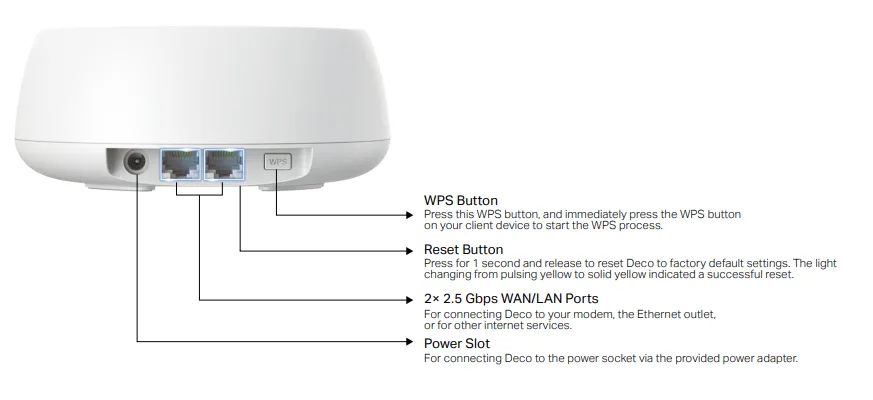
- 2 × 2.5 Gbps Ethernet ports: either port can connect to your connection box. The other is for a wired device.
- Reset button: press for 1 second to reset the Deco to factory settings. The light changes from pulsing yellow to solid yellow when the reset works.
- WPS button: press it, then the WPS button on your device, to connect without a password.
- Power slot: for the power adapter in the box.
Set up the Deco
-
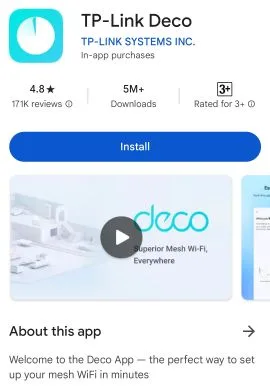
Download the TP-Link Deco app from the App Store or Google Play.
-
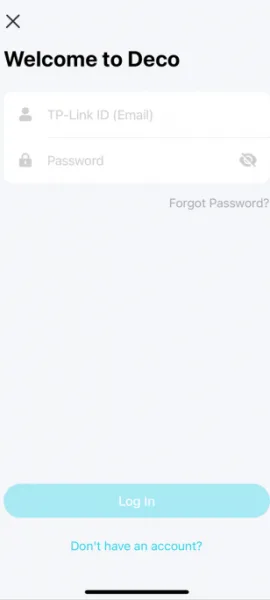
Open the app and log in with your TP-Link ID. If you don’t have one, create one.
-
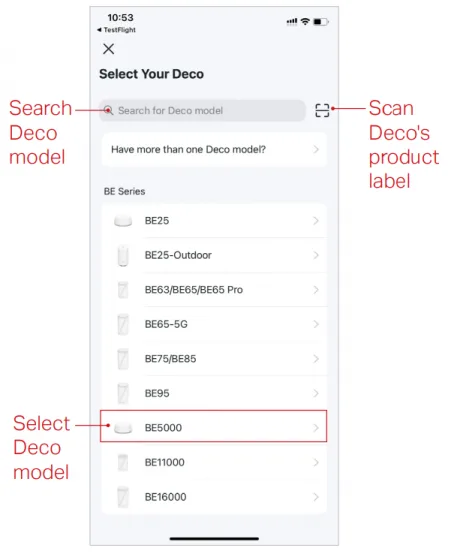
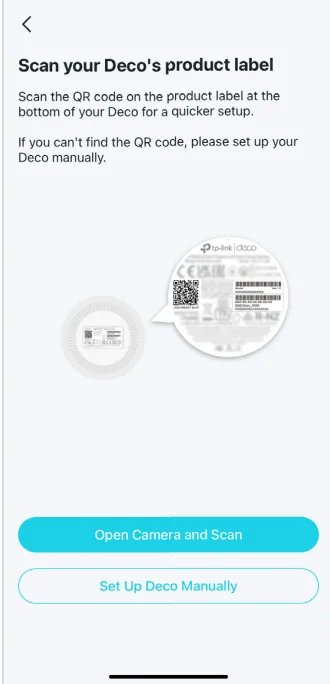
Choose your Deco model: search for it, scan the label on the Deco, or choose it from the list. Scanning the label is quickest, because your phone then connects to the Deco’s Wi-Fi automatically.
-
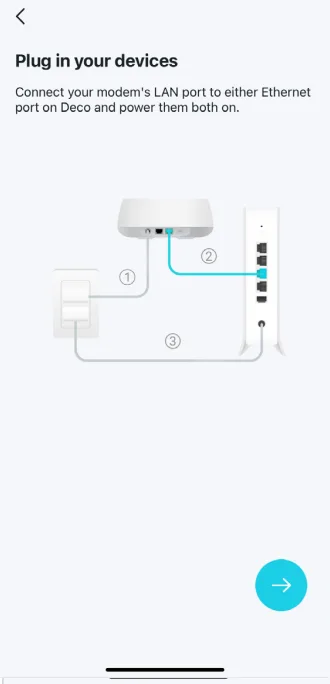
Connect an Ethernet cable from either port on the Deco to the Ethernet port on your connection box (the nbn box, or your fibre network’s box), then plug the Deco into power.
-
Wait until the Deco’s light pulses blue. Your phone connects to the Deco’s Wi-Fi automatically.
-
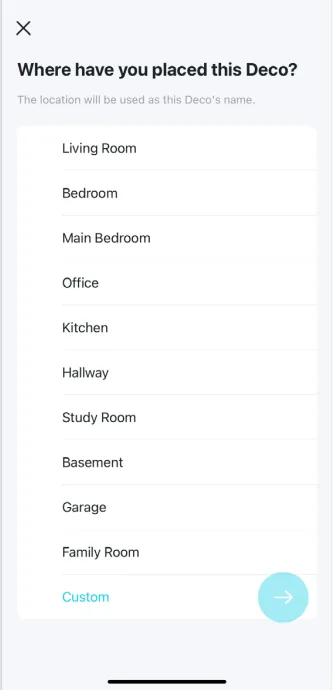
Choose where the Deco is, like Living room. The app uses this as the Deco’s name.
-
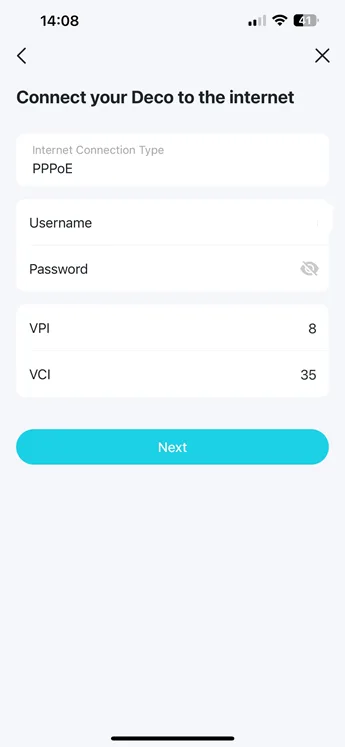
Choose the internet connection type in your activation email:
- Dynamic IP (like Opticomm, SUPA Networks, VostroNet and some nbn services): choose Dynamic IP.
- PPPoE (like Neoloop and some nbn services): choose PPPoE, and enter the username and password from your activation email.
-
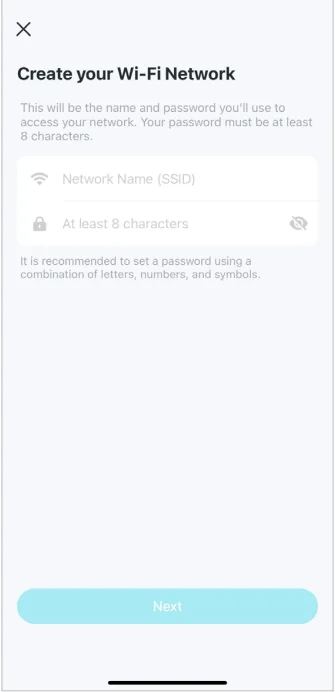
Choose a Wi-Fi name and password.
-
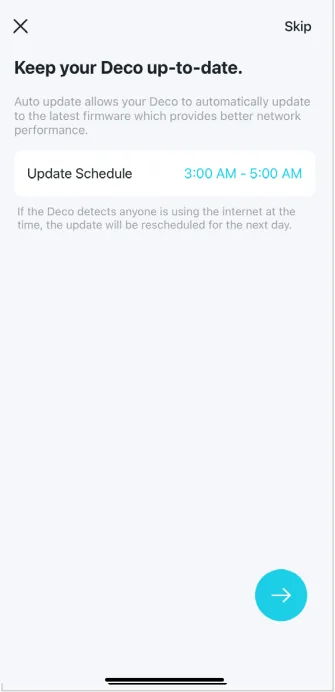
Choose a time for automatic updates, to keep the Deco up to date.
-
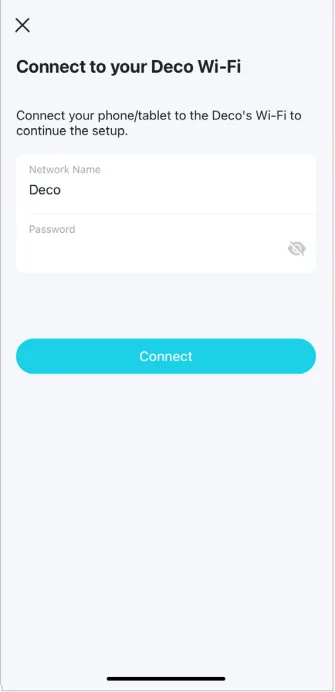
Connect your phone to the new Wi-Fi network to finish setup.
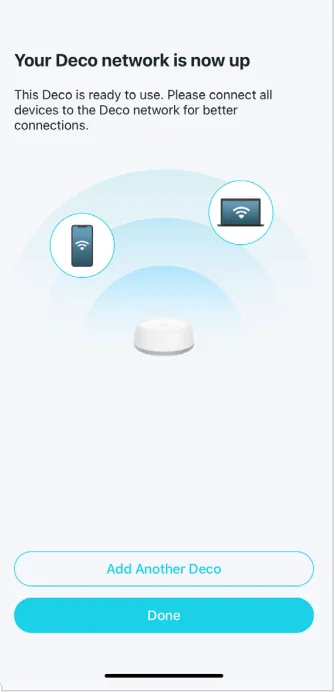
To add more Decos, tap + in the app and follow the steps. Put each one about halfway between the first Deco and the area that needs better Wi-Fi.
What the light means
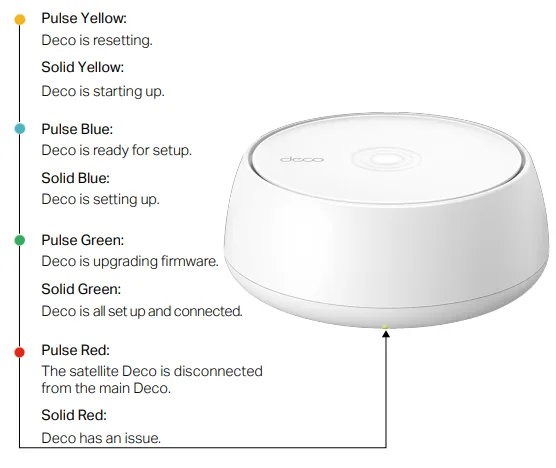
| Light | What it means |
|---|---|
| Pulsing yellow | Resetting |
| Solid yellow | Starting up |
| Pulsing blue | Ready to set up |
| Solid blue | Setting up |
| Pulsing green | Updating its software |
| Solid green | Set up and connected |
| Pulsing red | An extra Deco has lost its connection to the main Deco |
| Solid red | Something’s wrong. Check the cable to your connection box, and your internet settings. |
If setup doesn’t work
- Scanning the label doesn’t connect your phone to the Deco: skip that step and join the Deco’s Wi-Fi manually from your phone’s Wi-Fi settings. The network name is on the label.
- The app can’t find the Deco: turn Bluetooth off and on again on your phone, reset the Deco (see Ports and buttons), and try again.
- You need to change the PPPoE details after setup: in the app, tap More (bottom right), then Internet Connection or Advanced > IPv4, depending on your app version.
TP-Link has more help in what to do if the Deco app can’t find your Deco. Still stuck? Report a problem or call us on 1800 663 977.