
The ASUS ZenWiFi AX Mini (XD4) is a Wi-Fi 6 mesh system. One XD4 plugs into your connection box with an Ethernet cable, and any others spread Wi-Fi around your home. This guide shows how to set it up for Quokka Net with ASUS’s Quick Internet Setup.
The XD4 has no DSL port, so it can’t plug into a phone socket on its own. On nbn FTTN or FTTB, use a modem router like the NetComm NF18Mesh instead.

Ports
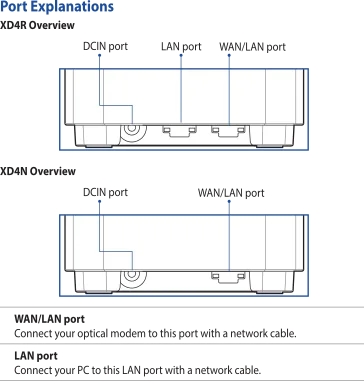
- WAN/LAN port: on the main XD4 (the router, model XD4R), connect this to your connection box with an Ethernet cable.
- LAN port: for a wired device, like a computer.
Set up with Quick Internet Setup
-
Connect an Ethernet cable from the main XD4’s WAN/LAN port to the Ethernet port on your connection box (the nbn box, or your fibre network’s box), and plug the XD4 into power.
-
Connect your computer to the XD4, with an Ethernet cable to its LAN port or over Wi-Fi.
-
Open a web browser. You should be taken to Quick Internet Setup automatically. If not, go to http://www.asusrouter.com.
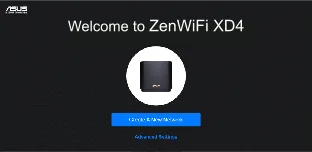
-
The XD4 tries to detect your connection type. Choose or confirm the one in the activation email we sent when your service was connected:
- Dynamic IP (like Opticomm, SUPA Networks, VostroNet and some nbn services): there’s no username or password.
- PPPoE (like Neoloop and some nbn services): enter the username and password from the email.
If it can’t detect the connection type, click Manual Setting and choose it yourself.
-
Choose a Wi-Fi name (SSID) and password for the 2.4 GHz and 5 GHz networks, and click Apply.
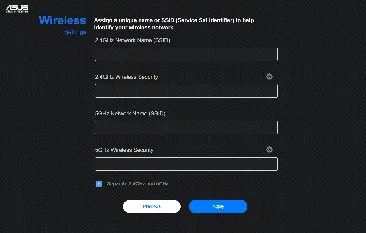
-
On the Login Information Setup page, change the router’s login password, so no one else can change its settings.
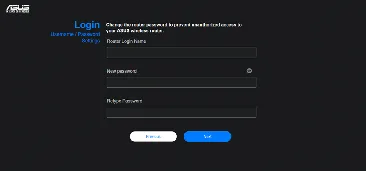
Setup doesn’t start, or the XD4 was used before? Reset it to factory settings by holding its Reset button, then start again.
Change the internet settings later
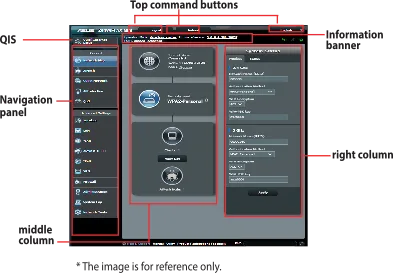
- Log in at http://www.asusrouter.com.
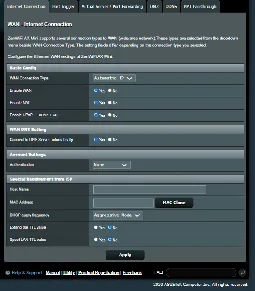
- Go to Advanced Settings > WAN > Internet Connection.
- Set WAN Connection Type to the connection type in your activation email: Automatic IP for Dynamic IP, or PPPoE, with your username and password.
- Make sure Enable WAN is set to Yes.
- Leave everything else as it is, and click Apply.
Still not working?
Restart the XD4 and your connection box, then report a problem or call us on 1800 663 977. For more detail, see the ASUS ZenWiFi AX Mini (XD4) user manual (PDF).