
The Nokia WiFi Beacon 1.1 is a mesh Wi-Fi router you set up with the Nokia WiFi app. This guide shows how to set it up, connect it to the internet for Quokka Net, and factory reset it.
The Beacon has no DSL port, so it can’t plug into a phone socket on its own. On nbn FTTN or FTTB, it needs a modem router in front of it.
Before you start
You’ll need:
- your phone or tablet
- the connection type from the activation email we sent when your service was connected: Dynamic IP (like Opticomm, SUPA Networks, VostroNet and some nbn services), with no username or password, or PPPoE (like Neoloop and some nbn services), with the username and password from the email
Part 1: Set up the Beacon
-
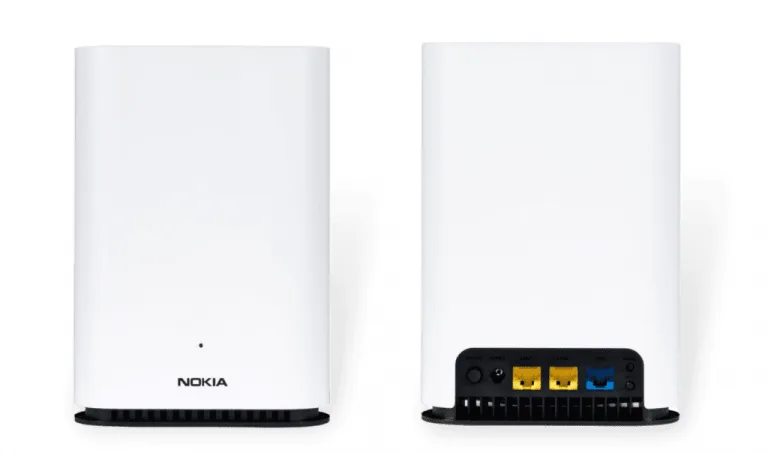
Connect the cables. Connect an Ethernet cable from the Beacon’s blue WAN port to the Ethernet port on your connection box (the nbn box, or your fibre network’s box). Then plug in the power cable.
-
Download the Nokia WiFi app from the App Store or Google Play.
-
Connect to the Beacon’s Wi-Fi. The default Wi-Fi name and password are on the label on the bottom of the Beacon.
-
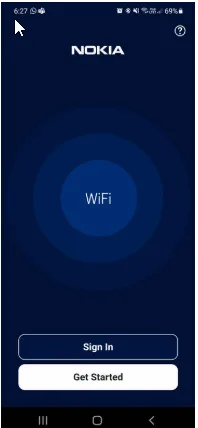
Open the Nokia WiFi app and tap Get started.
-
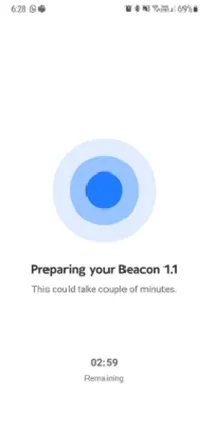
Scan the QR code on the bottom of the Beacon. This logs the app in to the Beacon.
-
Add an extender, if you have one. If you have another Beacon 1.1 to extend your Wi-Fi, follow the prompts to add it. If not, tap Skip.
-
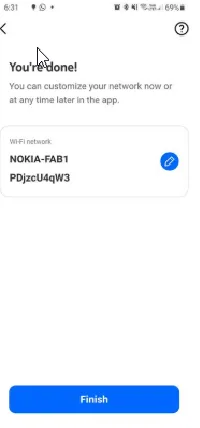
Change the Wi-Fi name and password, if you like, or tap Finish.
The app opens the Beacon’s Gateway settings page.
Part 2: Connect to the internet
-
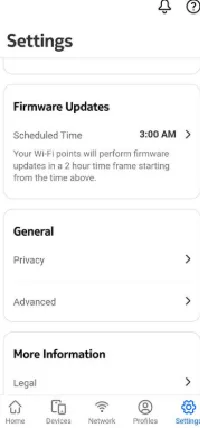
On the Gateway settings page, tap Settings (bottom right).
-
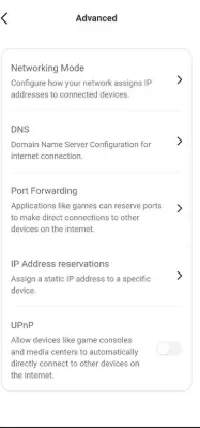
Under General, tap Advanced.
-
Tap Networking mode.
-
Choose the connection type in your activation email:
- Dynamic IP (like Opticomm, SUPA Networks, VostroNet and some nbn services): choose DHCP.
- PPPoE (like Neoloop and some nbn services): choose PPPoE, and enter the username and password from your activation email.
-
Save, and wait a few minutes for the Beacon to connect.
Factory reset
A factory reset erases all your settings and returns the Beacon to how it came out of the box.
- Unplug any Ethernet cables connecting the main Beacon to other Beacons.
- Leave the Beacon turned on.
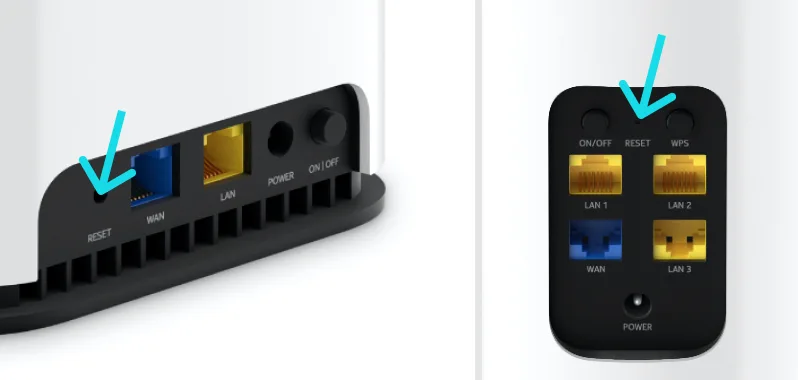
- Find the Reset button: a small, recessed button on the back, or on the bottom of some models.
- With a paperclip or SIM tool, press and hold it for 10 seconds, until the light flashes red twice.
- The light turns solid white while the Beacon starts up, which takes a few minutes. It then flashes yellow when it’s ready to set up again.
- Repeat for each extender Beacon.
Still not working?
Restart the Beacon and your connection box, then report a problem or call us on 1800 663 977.