
The TP-Link VX220-G2v is a VDSL modem router, so it works on every nbn technology: it plugs into your phone socket on FTTN and FTTB, or into the nbn box on FTTP, HFC, FTTC and Fixed Wireless. This guide shows how to connect it, enter your internet login, and what its lights mean.
Connect the cables below, then set up its internet connection. We don’t always send routers set up for your service, so you may need to do this even if you bought it from us.
Connect the cables
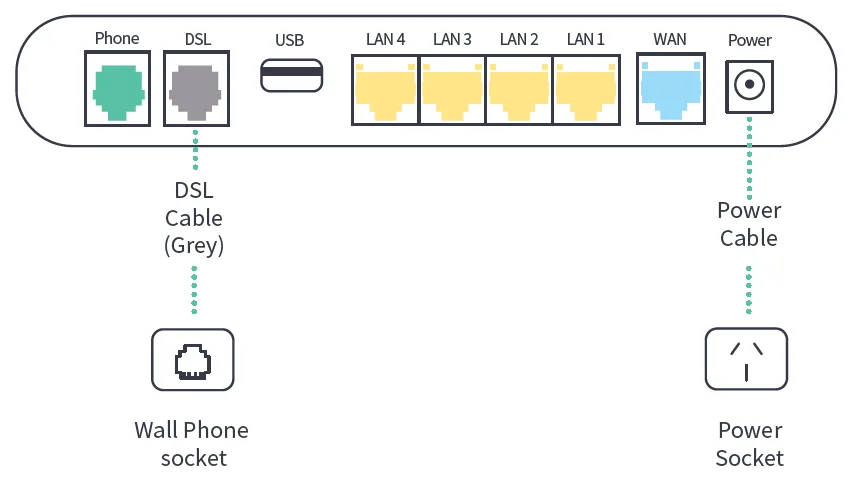
nbn FTTN and FTTB
- Connect the grey DSL cable from the router’s DSL port to your phone wall socket.
- Connect the power cable from the router’s Power port to a power point, and turn the router on.
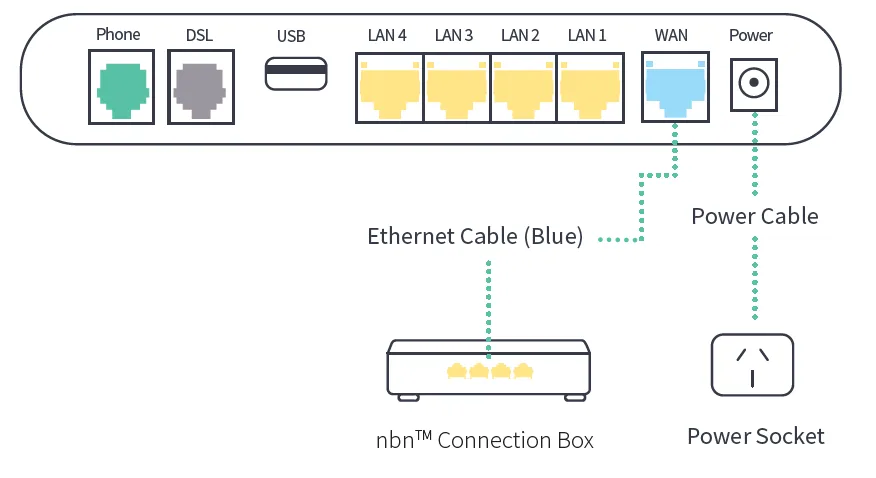
nbn FTTP, HFC, FTTC and Fixed Wireless
- Connect the blue Ethernet cable from the router’s WAN port to the Ethernet port on your nbn connection box. On FTTP and HFC this is usually UNI-D1.
- Connect the power cable from the router’s Power port to a power point, and turn the router on.
Set up the internet connection
Your activation email says whether your service uses PPPoE, with a username and password, or Dynamic IP (DHCP). On Dynamic IP, set the connection type to Dynamic IP in step 4 instead, with no username or password.
- Connect to the router’s Wi-Fi, using the name and password on the label underneath, or plug in with an Ethernet cable.
- Open a web browser and go to http://tplinkmodem.net or http://192.168.1.1, and log in.
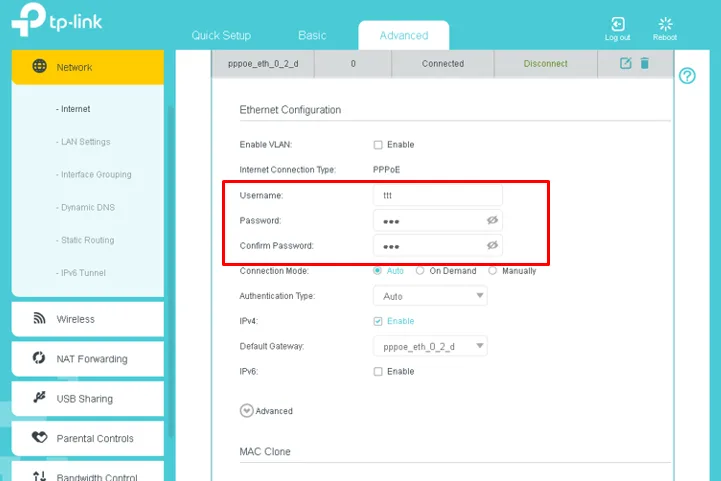
- Go to Advanced > Network > Internet.
- With the connection type set to PPPoE, enter the Username and Password from the activation email we sent when your service was connected. Enter the password again in Confirm Password.
- Click Save.
What the lights mean

When it’s working, Power and Internet are blue, and so is DSL (on FTTN and FTTB) or WAN (on every other nbn technology).
| Light | Status | What it means |
|---|---|---|
| Power | Blue | Powered on |
| Off | No power | |
| DSL | Blue | Connected to the phone line. It flashes while connecting. |
| Off | No connection on the phone line | |
| Internet | Blue | Online |
| Off | Offline. The connection type, username or password may be wrong. | |
| 2.4GHz and 5GHz | Blue | That Wi-Fi network is on |
| Off | That Wi-Fi network is off | |
| WPS | Flashing blue | A device is connecting with WPS. It stays on for about 5 minutes after it connects. |
| Off | WPS isn’t in use | |
| WAN | Blue | Something is plugged into the WAN port |
| Off | Nothing is plugged into the WAN port | |
| LAN 1 to 4 | Blue | At least one device is plugged into a LAN port |
| Off | Nothing is plugged into the LAN ports | |
| Phone | Blue | Your VoIP phone service is online |
| Off | No VoIP phone service | |
| USB | Blue | A USB device is plugged in. It flashes while data is moving. |
| Off | Nothing is plugged into the USB port |
DSL or WAN on, but Internet off? The router is connected to the line but can’t log in. Check the username and password match your activation email exactly.
Still not working?
Restart the router and your nbn box, then report a problem or call us on 1800 663 977.