
An eero is a mesh Wi-Fi system you set up with the eero app on your phone. This guide shows how to set one up for Quokka Net, including the PPPoE login some services need, what the eero’s light means, and how to restart or reset it.
The eero has no DSL port, so it can’t plug into a phone socket on its own. On nbn FTTN or FTTB, it needs a modem router in front of it.
Before you start
You’ll need:
- your phone, with Bluetooth turned on
- the connection type from the activation email we sent when your service was connected: Dynamic IP (like Opticomm, SUPA Networks, VostroNet and some nbn services), with no username or password, or PPPoE (like Neoloop and some nbn services), with the username and password from the email
Set up your eero
1. Download the eero app
Download the eero Wi-Fi System app, open it and tap Start setup.


2. Unplug your old router
If you’re replacing a router, unplug it. Note its Wi-Fi name and password first: if you give your eero the same ones, your devices reconnect by themselves.
Leave your nbn box or fibre box (ONT) plugged in.
3. Connect the eero to your connection box
Plug the Ethernet cable that came with your eero into any port on the eero, and the other end into the Ethernet port on your connection box (the nbn box, or your fibre network’s box).
4. Turn on the eero
Plug the eero into power. Its light flashes white while it starts up.
5. Connect to the internet
The app finds your eero and tries to connect it to the internet.
- On Dynamic IP (like Opticomm, SUPA Networks, VostroNet and some nbn services, as your activation email says): the eero connects by itself, because it uses Dynamic IP (DHCP) by default. Go to step 6.
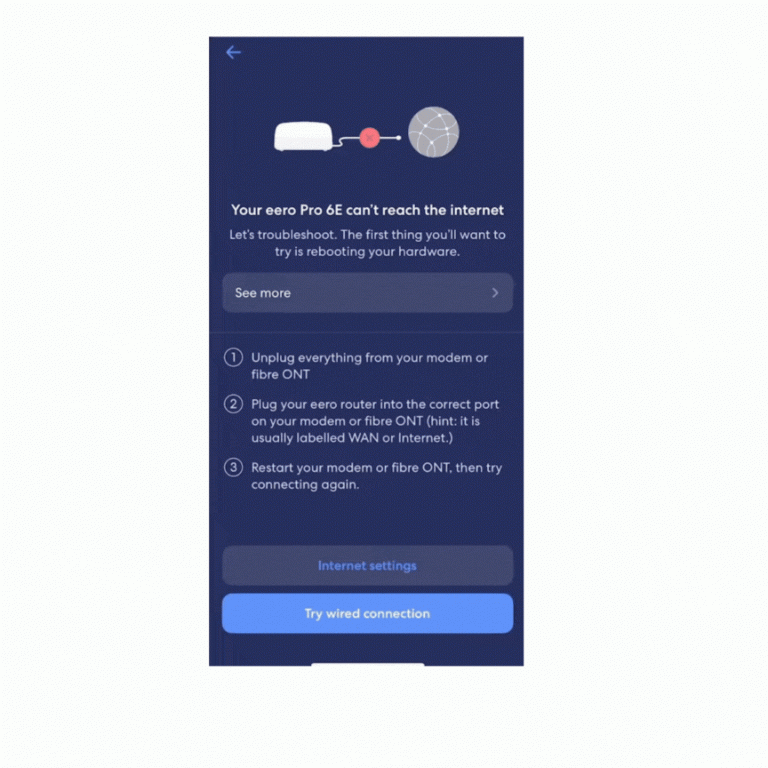
- On PPPoE (like Neoloop and some nbn services): the eero shows an error when it tries to connect. That’s expected. Check the cable is plugged in and the eero is on, then tap Internet settings, set WAN type to PPPoE, and enter the username and password from your activation email.
When the eero is online, its light turns solid white.
6. Name its location
Choose where the eero is, like Living room, or type your own name. This helps you tell your eeros apart in the app.
7. Create your Wi-Fi network
Choose a Wi-Fi name and password. Use your old router’s name and password if you’d like your devices to reconnect by themselves.
Tap Finish setup, or Add another eero to set up more.
Adding more eeros
Where you put extra eeros makes a big difference:
- Halfway is best. Put each extra eero about halfway between an eero that’s working and the area with weak Wi-Fi.
- Keep it in the open. Not inside a cabinet or entertainment unit, or behind or under large furniture.
- Keep it away from large electronics and metal, which block Wi-Fi.
An eero with an Ethernet port can connect to your other eeros wirelessly, or by Ethernet cable for faster, more reliable Wi-Fi. Models without an Ethernet port, like the eero Beacon and eero 6 Extender, connect wirelessly only.
What the eero’s light means
When everything is working, the light is solid white.
| Light | What it means | What to do |
|---|---|---|
| Off | No power | Check the eero is plugged in and the power point is on |
| Flashing white | Starting up, or connecting to the internet | Wait for it to finish |
| Flashing blue | Ready to set up (broadcasting Bluetooth) | Open the eero app |
| Solid blue | The eero app is connected and setting it up | Follow the steps in the app |
| Flashing green | More than one eero found during setup | Turn off every eero except the one you’re setting up |
| Flashing yellow | An unsupported power adapter is plugged in | Use the power adapter that came with the eero |
| Solid white | Connected to the internet | Nothing |
| Solid red | Not connected to the internet | Check status.quokkanet.au for outages, and that the cable to your connection box is plugged in. On PPPoE, check the username and password in the app. |
Restart an eero in the app
One eero: on the Home tab, tap the eero, tap the three dots in the top right, then Restart. Restarting your gateway eero (the one connected to your connection box) takes your whole network offline for a few minutes.
The whole network: tap the Settings tab, then Network settings, then Restart network. Tap Restart network again to confirm. On Android, the restart option may be under the three dots at the top of the page.
Remove an eero: on the Home tab, tap the eero, tap the three dots in the top right, then Remove. Removing your gateway eero takes your network offline.
Restart or reset with the reset button
The reset button does three things, depending on how long you hold it.
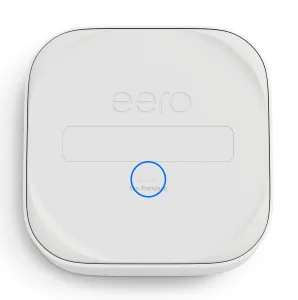
On the eero Pro 6, eero Pro 6E and eero 7, the reset button is a small, recessed oval button on the bottom.
Restart
Press the reset button once.
Soft reset
A soft reset clears the eero’s network settings but keeps it on your network, along with its logs and advanced settings like IP reservations and port forwarding.
- Hold the reset button until the light flashes yellow (about 7 seconds), then let go.
- The light flashes white, then blue for up to two minutes while it reconnects, then turns solid white.
If the light keeps flashing blue, or turns red, after two minutes, the eero may not be getting an internet connection. If you know your internet is working, it may have hard reset instead: add it back to your network in the app.
Hard reset
A hard reset erases everything, including your network settings, user data and logs, and removes the eero from your network. You can do the same by removing the eero in the app.
- Hold the reset button until the light flashes red (about 15 seconds), then let go.
- The light flashes white, then flashes blue: the eero is ready to set up again in the app.
Still not working?
Report a problem or call us on 1800 663 977, and tell us what colour the eero’s light is.