
The TP-Link Archer AX23 (AX1800) is a Wi-Fi 6 router that plugs into your connection box with an Ethernet cable. This guide shows how to set it up for Quokka Net from its web page, in about 10 minutes.
The Archer AX23 has no DSL port, so it can’t plug into a phone socket on its own. On nbn FTTN or FTTB, use a modem router like the NetComm NF18Mesh or TP-Link VX220-G2v instead.
The screenshots below are from TP-Link’s setup wizard, which looks the same across its Wi-Fi 6 routers.
Before you start
You’ll need:
- the connection type from the activation email we sent when your service was connected: Dynamic IP (like Opticomm, SUPA Networks, VostroNet and some nbn services), with no username or password, or PPPoE (like Neoloop and some nbn services), with the username and password from the email.
1. Connect the router to your connection box
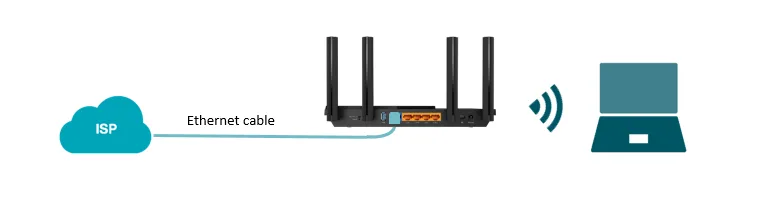
Connect an Ethernet cable from the router’s blue WAN port to the Ethernet port on your connection box (the nbn box, or your fibre network’s box).
2. Connect to the router and open its web page
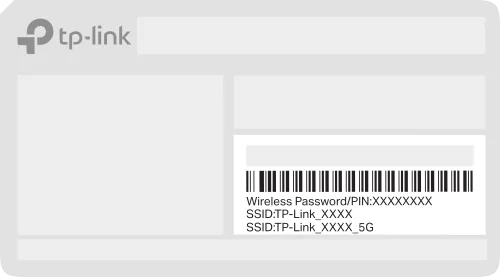
Connect your computer, tablet or phone to the router over Wi-Fi, or with an Ethernet cable to one of the yellow LAN ports. The default Wi-Fi name and password are on the label on the bottom of the router.
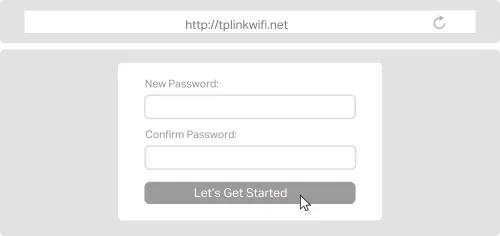
Open a web browser and go to http://tplinkwifi.net or http://192.168.0.1.
3. Create a password and choose your time zone
The first time you open the router’s page, it asks you to create a login password. Choose one you’ll remember: you’ll need it to change settings later.
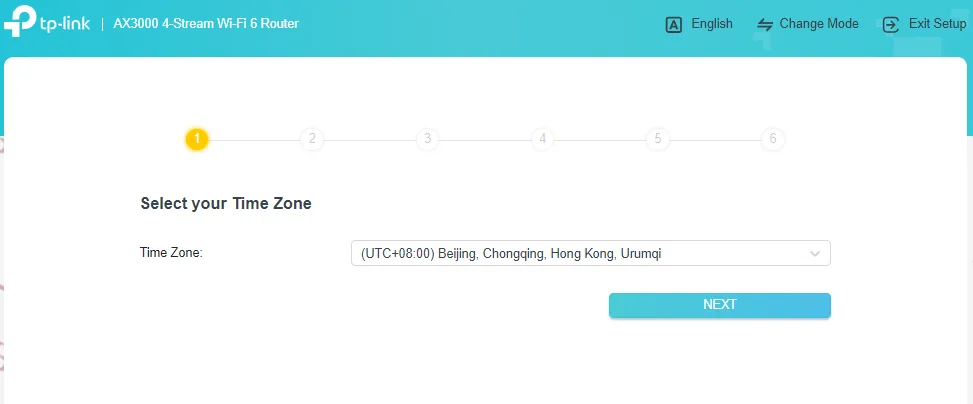
Then choose your time zone.
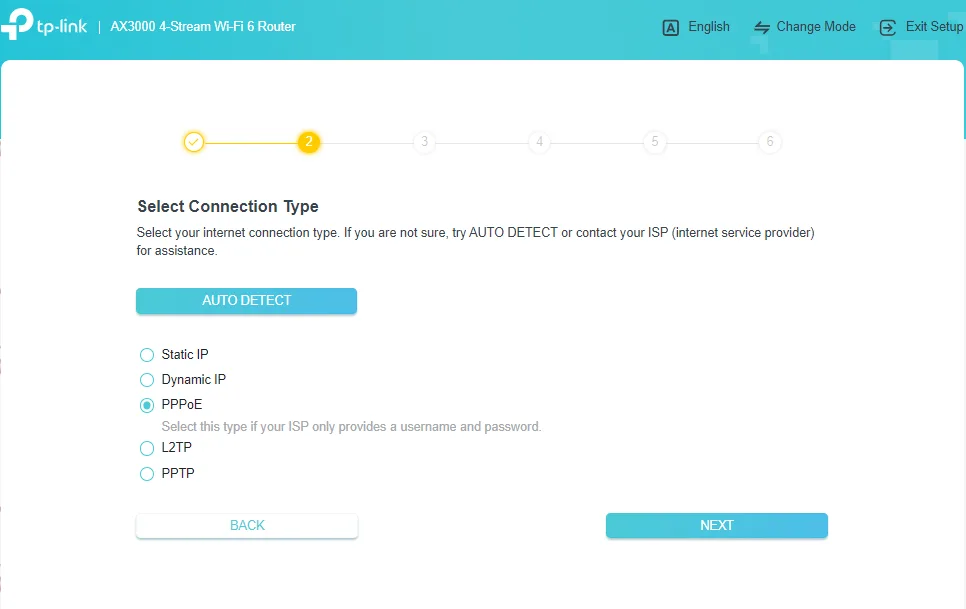
4. Choose the connection type
Choose the connection type in your activation email:
- Dynamic IP (like Opticomm, SUPA Networks, VostroNet and some nbn services): choose Dynamic IP.
- PPPoE (like Neoloop and some nbn services): choose PPPoE.
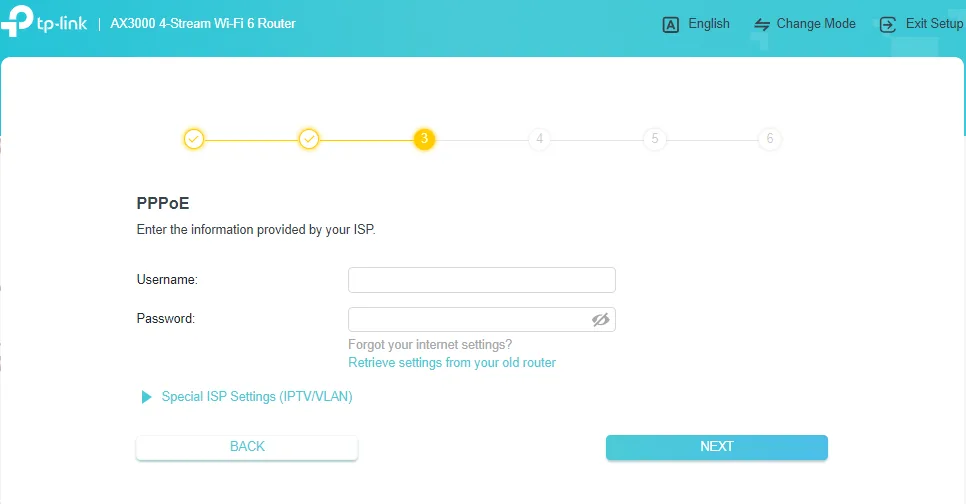
For PPPoE, enter the username and password from your activation email.
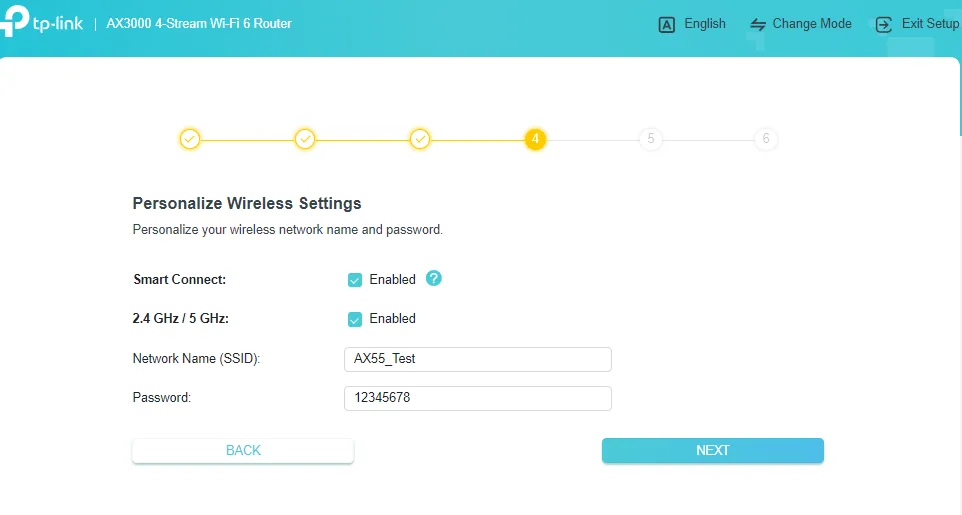
5. Set up your Wi-Fi
You can change the Wi-Fi names and passwords for the 2.4 GHz and 5 GHz networks, or leave them as they are.
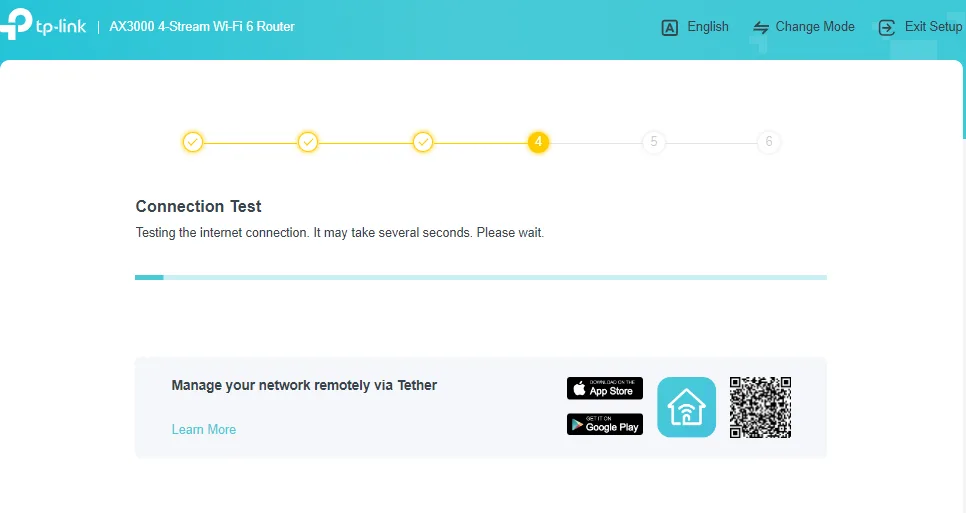
6. Test the connection
The router tests its internet connection. If the test fails, go back and check the connection type, and that the username and password match your activation email exactly.
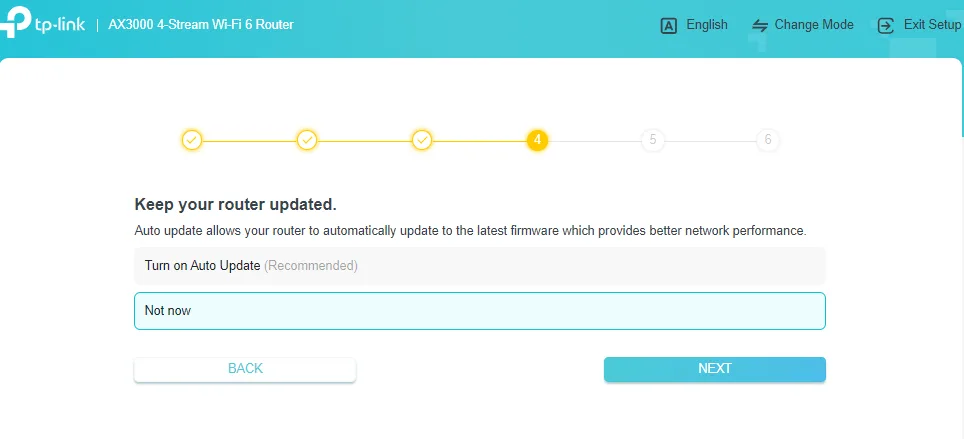
7. Choose when to update
Choose a time for the router to install software updates automatically (overnight is best), or skip this step.
8. Done
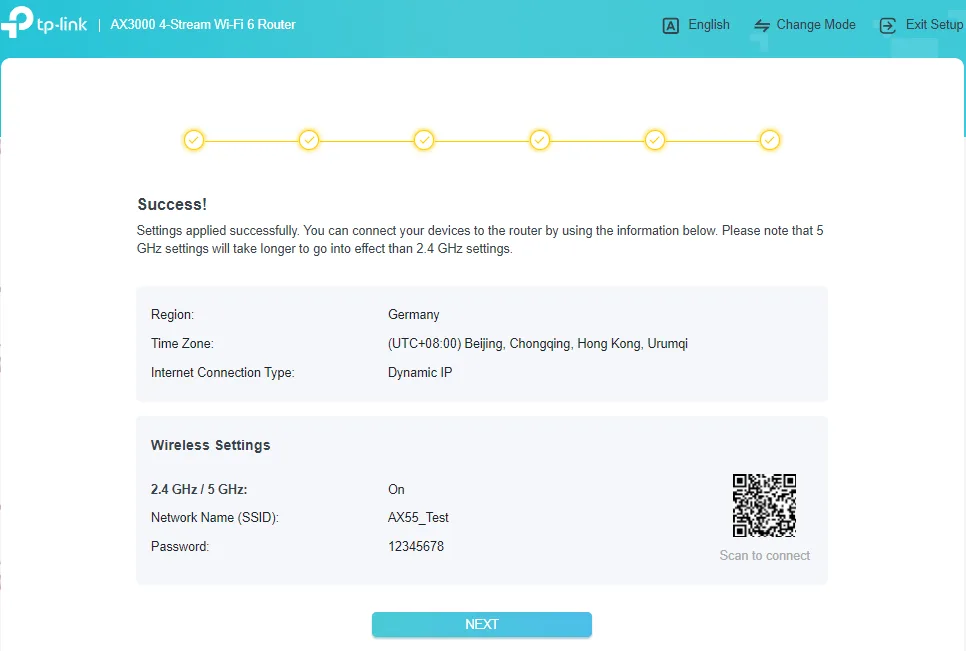
Your router is set up. If you changed the Wi-Fi name or password, reconnect your devices to the new network.
Still not working?
Restart the router and your connection box, then report a problem or call us on 1800 663 977. TP-Link’s own guide is How to set up a TP-Link Wi-Fi router.