
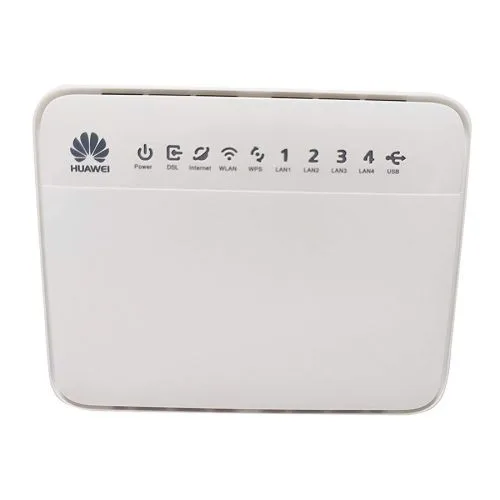
Some Frontier Networks homes have a Huawei HG658, the box Frontier installs to connect your home to its network. Your own router plugs into it. This guide shows how to connect your router, what the HG658’s lights mean, and how to log in to it or reset it.
Ports on the back
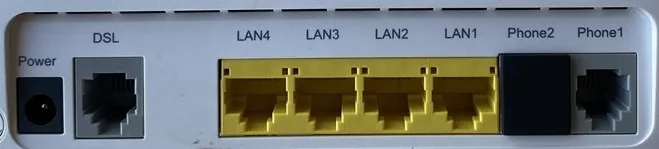
- Power: the power adapter plugs in here.
- DSL: connects to the phone wall socket, for services over the phone line.
- LAN4 to LAN1: Ethernet ports. Your router plugs into LAN1, unless your activation email names a different port.
- Phone2 and Phone1: for telephones.
Connect the cables
- Connect an Ethernet cable from the WAN port on your router to the port labelled LAN1 on the HG658. If your activation email names a different port, use that one.
- Plug your wired devices, like computers and game consoles, into your router.
- Plug the HG658’s power adapter into the socket labelled POWER.
- Press the On/Off button on the side to turn the HG658 on, then turn on your router.
Huawei’s diagram below shows what each port is for. On a Frontier service, your devices connect to your router rather than to the HG658.
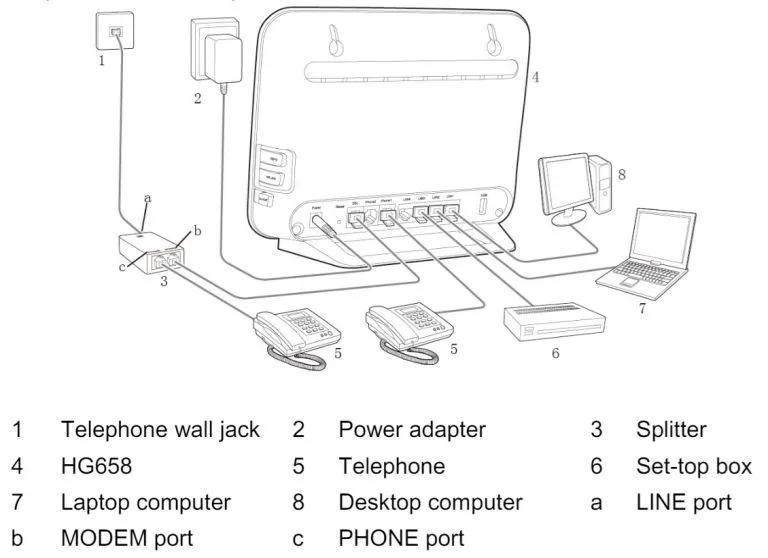
After you turn it on, the WAN light flashes for up to three minutes while the HG658 connects, then stays on. The Power light also stays on when it’s working properly.
To turn the HG658 off, press the On/Off button again, then unplug the power adapter.
What the lights mean

| Light | Colour | Status | What it means |
|---|---|---|---|
| Power | Green | On | Powered on |
| Red | On | An error while starting up | |
| - | Off | Powered off | |
| DSL | Green | On | The DSL connection is up |
| Green | Flashing | The DSL connection is starting | |
| - | Off | Powered off, or no DSL connection | |
| Internet | Green | On | Connected to the internet, no data moving |
| Green | Flashing | Connected to the internet, data moving | |
| Red | On | Connected to the line, but not to the internet | |
| - | Off | Powered off, in bridge mode, or no connection | |
| WLAN | Green | On | Wi-Fi is on, no data moving |
| Green | Flashing | Wi-Fi is on and data is moving, or a device is connecting with WPS | |
| WPS | Green | Flashing | A device is connecting with WPS |
| Green | On | A device has connected with WPS | |
| LAN1 to LAN4 | Green | On | A device is connected, no data moving |
| Green | Flashing | A device is connected and data is moving | |
| - | Off | Nothing connected, or powered off | |
| USB | Green | On | A USB device is connected, no data moving |
| Green | Flashing | A USB device is connected and data is moving | |
| - | Off | No USB device, or powered off |
If the Internet light is red, restart the HG658. If it stays red, contact us.
Log in to the HG658
You don’t normally need to. If we ask you to:
- Open a web browser on a computer connected to the HG658, and go to
http://192.168.1.1. - Enter the username user and the password HuaweiUser (the defaults), and click Login.
Reset to factory settings
Resetting erases all changes to the HG658’s settings, so only do it if we ask you to.
With the HG658 turned on, press and hold the Reset button for at least 6 seconds, then let go.
Or, from the web page: log in, choose Maintenance > Device, click Restore Default Settings, then OK. When the login page appears, log in with the default username and password above.
Still not working?
Report a problem or call us on 1800 663 977, and tell us which lights are on. More about Frontier Networks is on our Frontier Networks page.